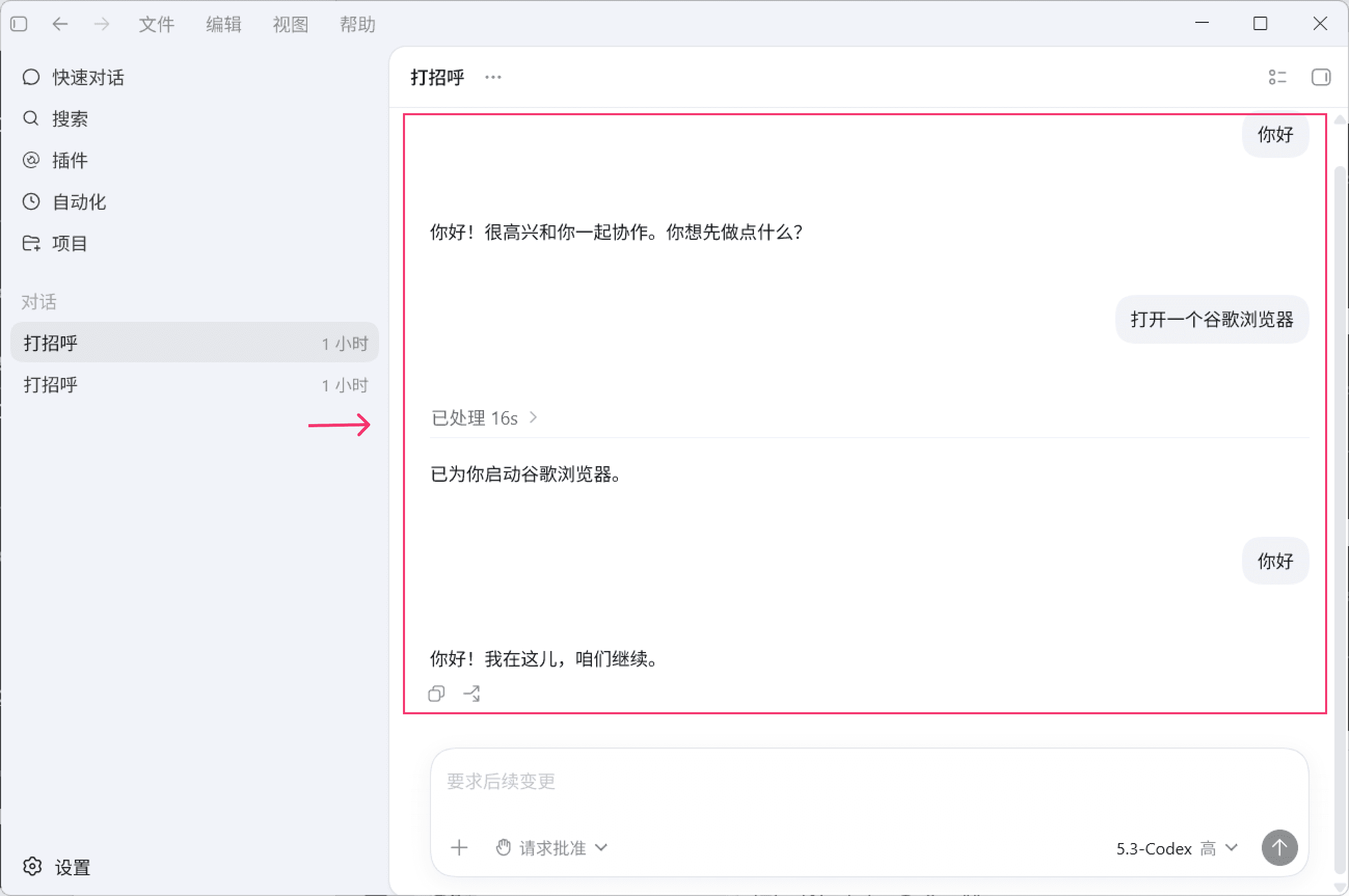

Codex
Use CanalAPI with Codex.
1. Introduction
This guide explains how to install and use Codex on Windows.
2. Install the Codex CLI
2.1 Install via command
- Right-click the Start menu and select "Terminal (Admin)" to open PowerShell.
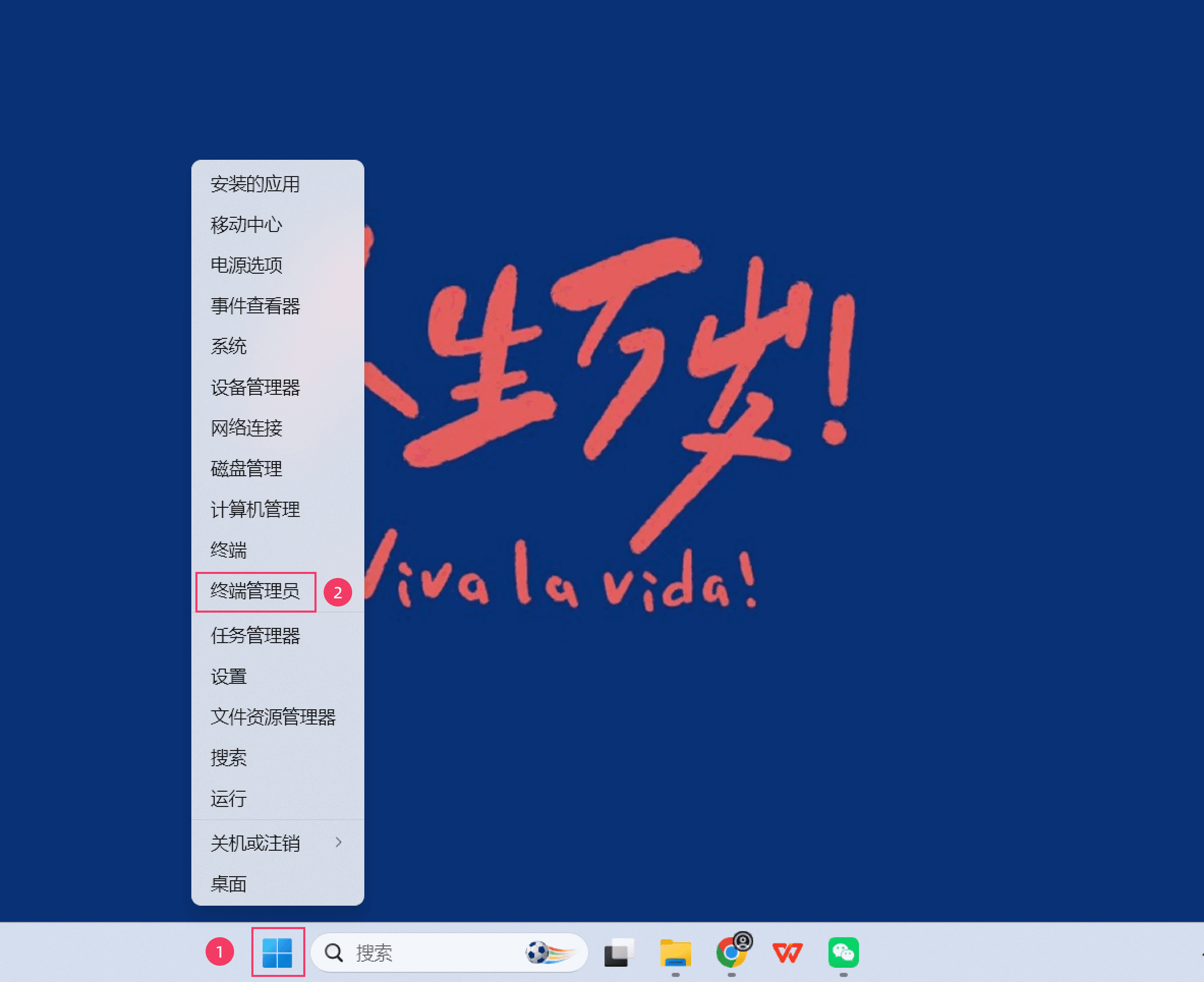
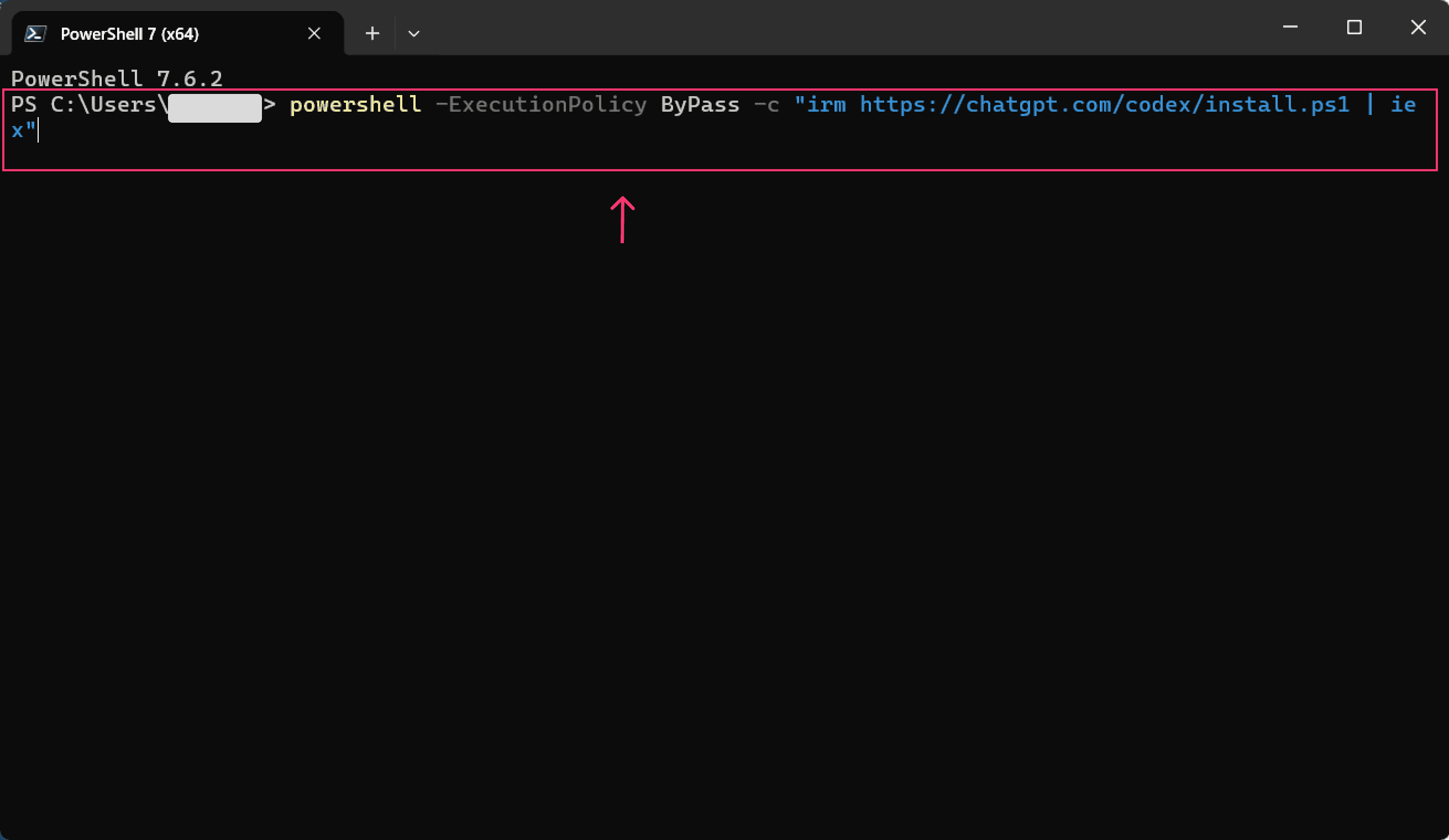
- In the terminal, run the following command to install the Codex CLI.
- powershell -ExecutionPolicy ByPass -c "irm https://chatgpt.com/codex/install.ps1 | iex"
- When the "installed successfully" message appears, the installation is complete, as shown below:
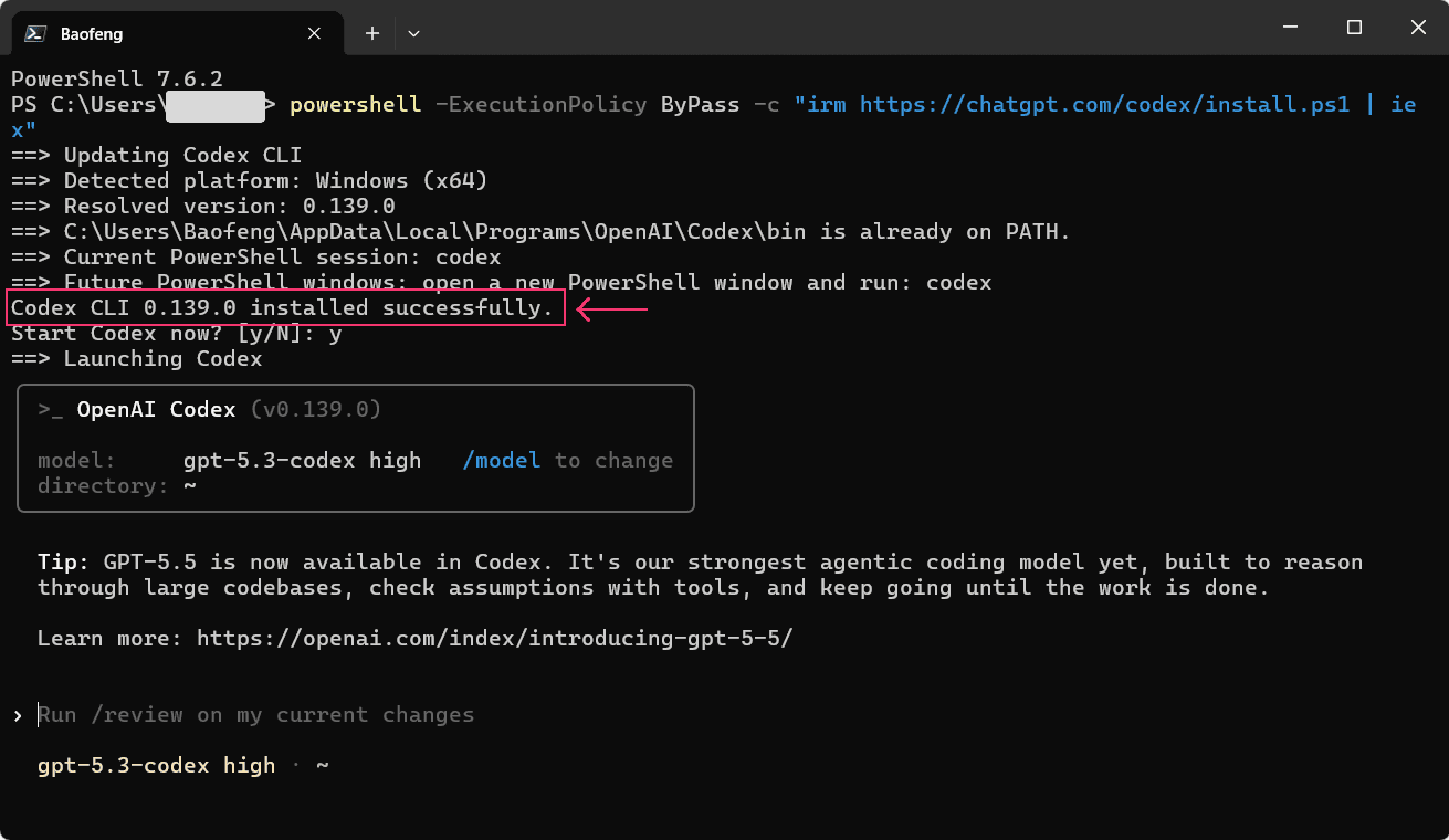
- After a successful install, the system asks whether to start Codex now. Type
yand press Enter to continue.
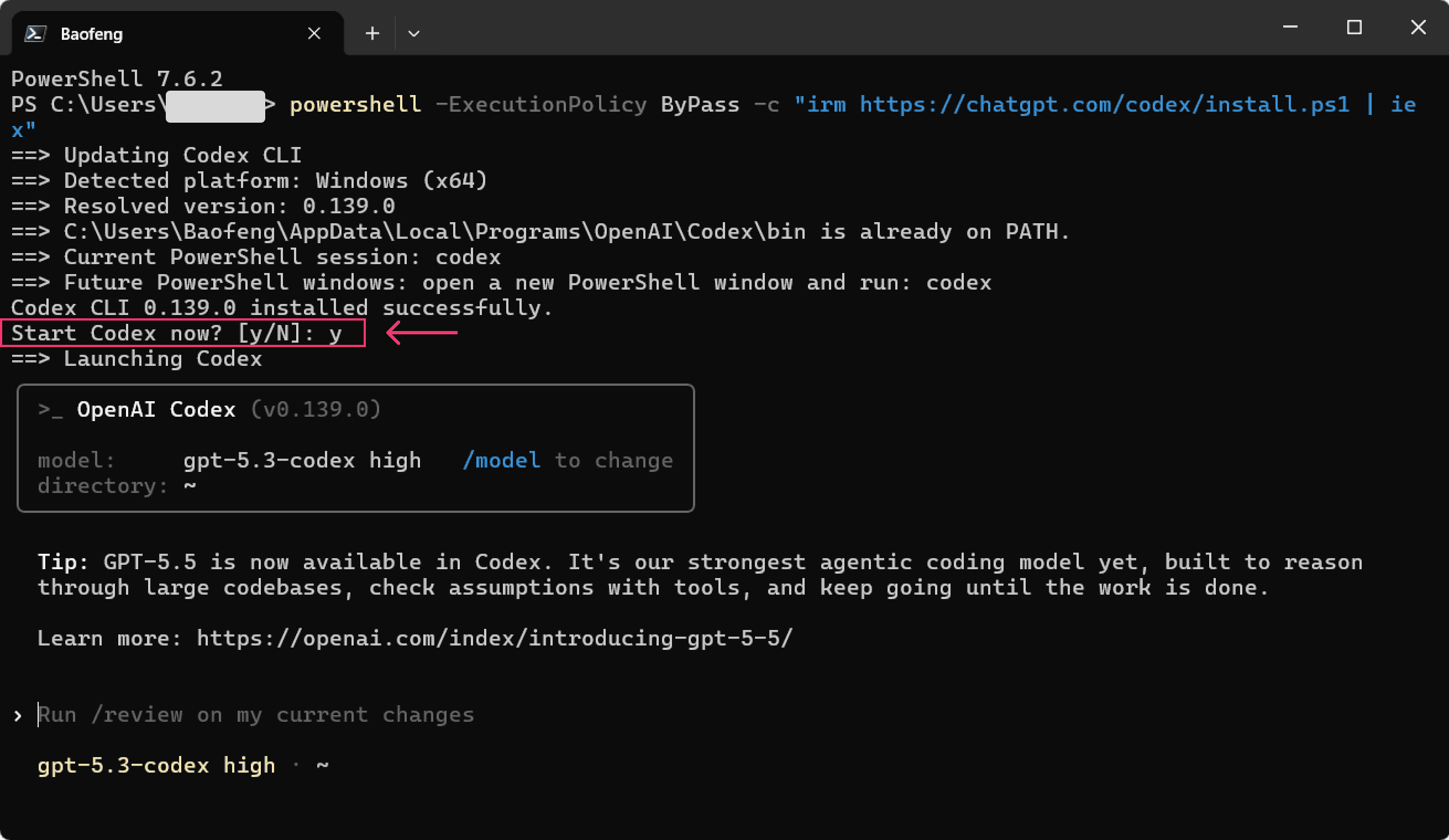
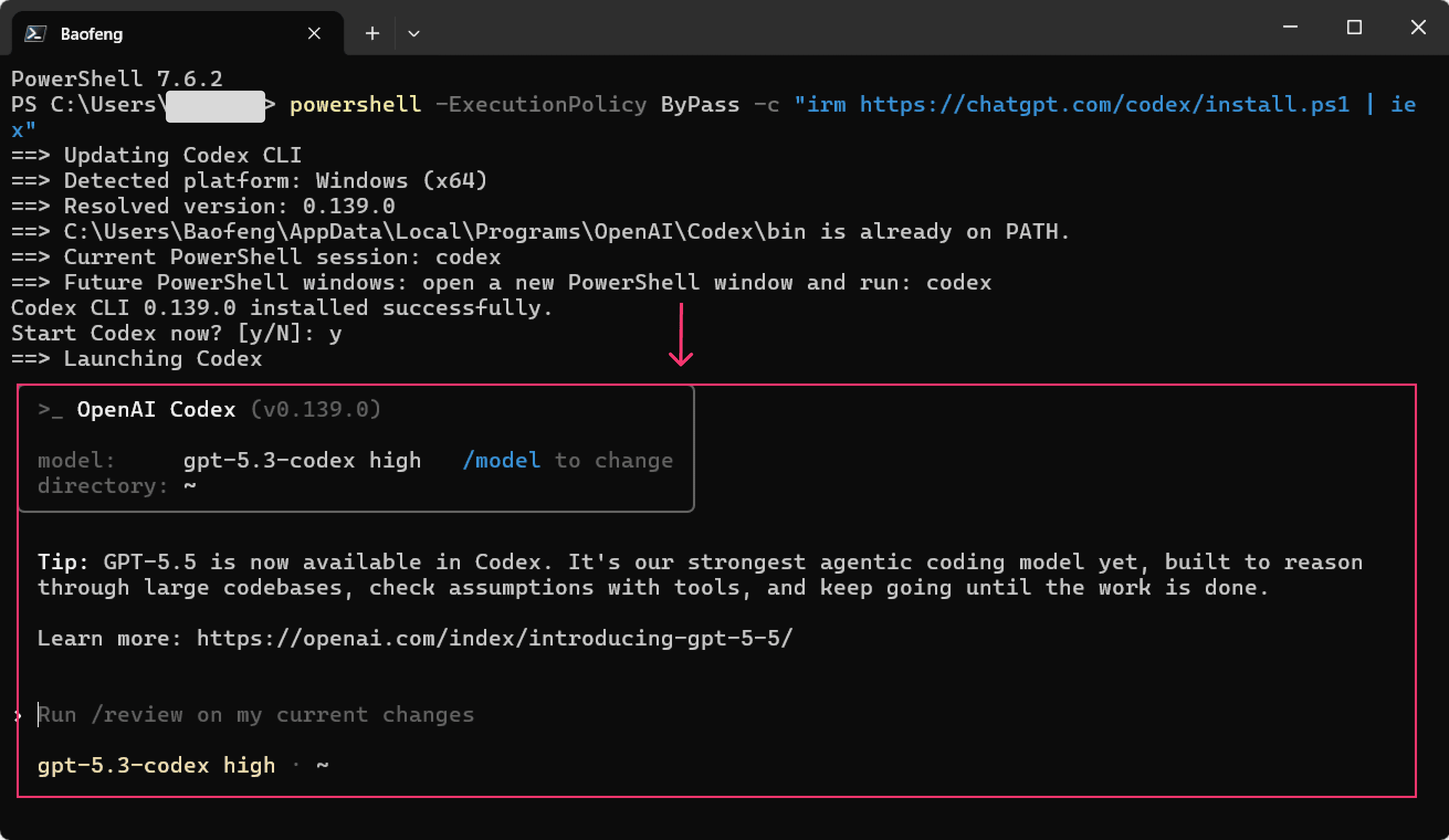
- When Codex starts and shows its chat box, or when it does not start and asks you to sign in, close the PowerShell terminal.
2.2 Set up the config file
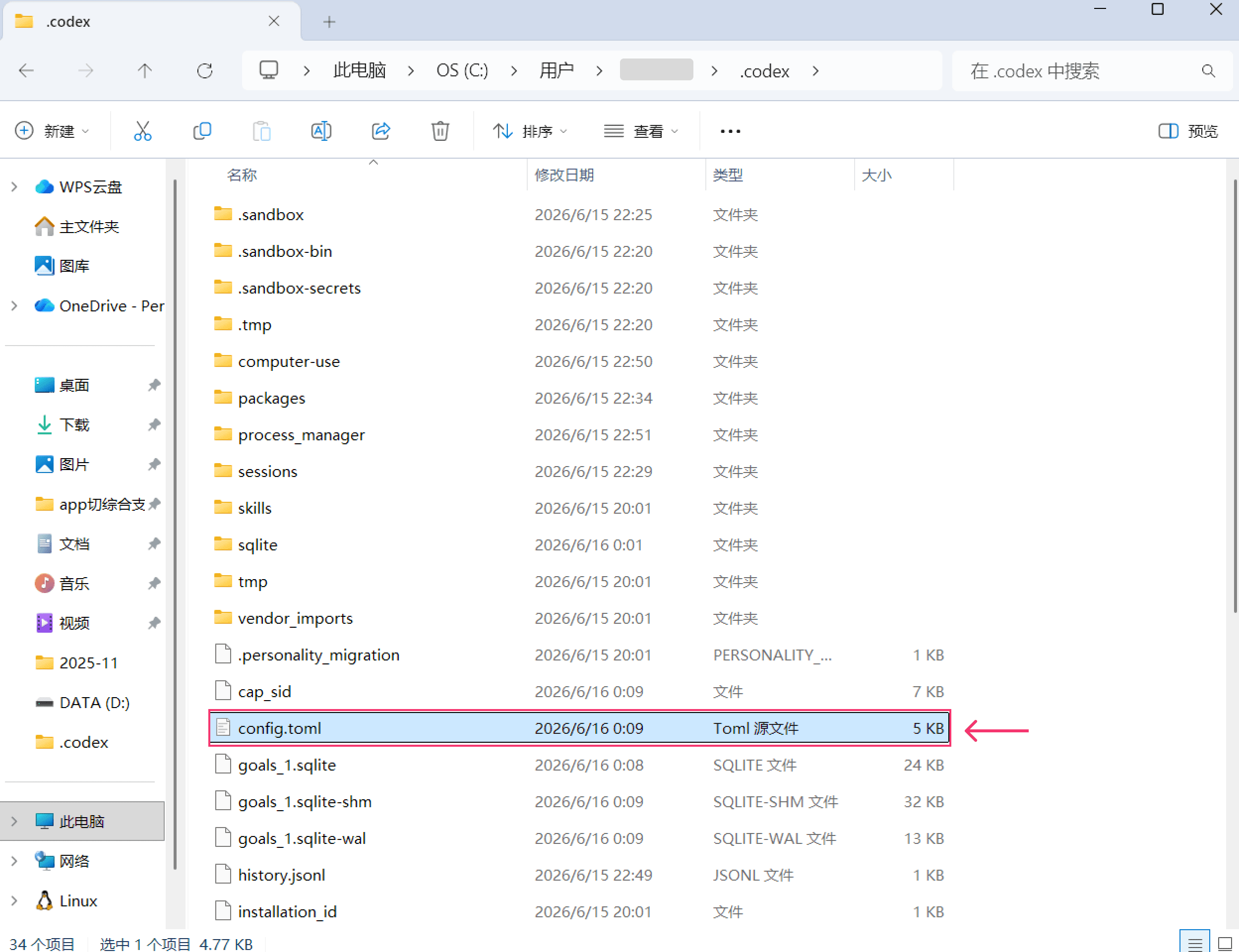
In "C: drive >> Users", find the .codex folder, open it, then create a config.toml file with the following contents:
model = "gpt-5.4-mini"
model_provider = "canalapi"

[model_providers.canalapi]
name = "CanalAPI"
base_url = "https://api.canalapi.com/v1"
env_key = "OPENAI_API_KEY"
Then set the API key environment variable in PowerShell:
[Environment]::SetEnvironmentVariable('OPENAI_API_KEY', 'YOUR_CANALAPI_KEY', 'User')Replace
YOUR_CANALAPI_KEYwith the API key you created on the CanalAPI website.Note: if a config file already exists in the
.codexfolder, replace it; if not, just add the new one.
2.3 Set config file permissions
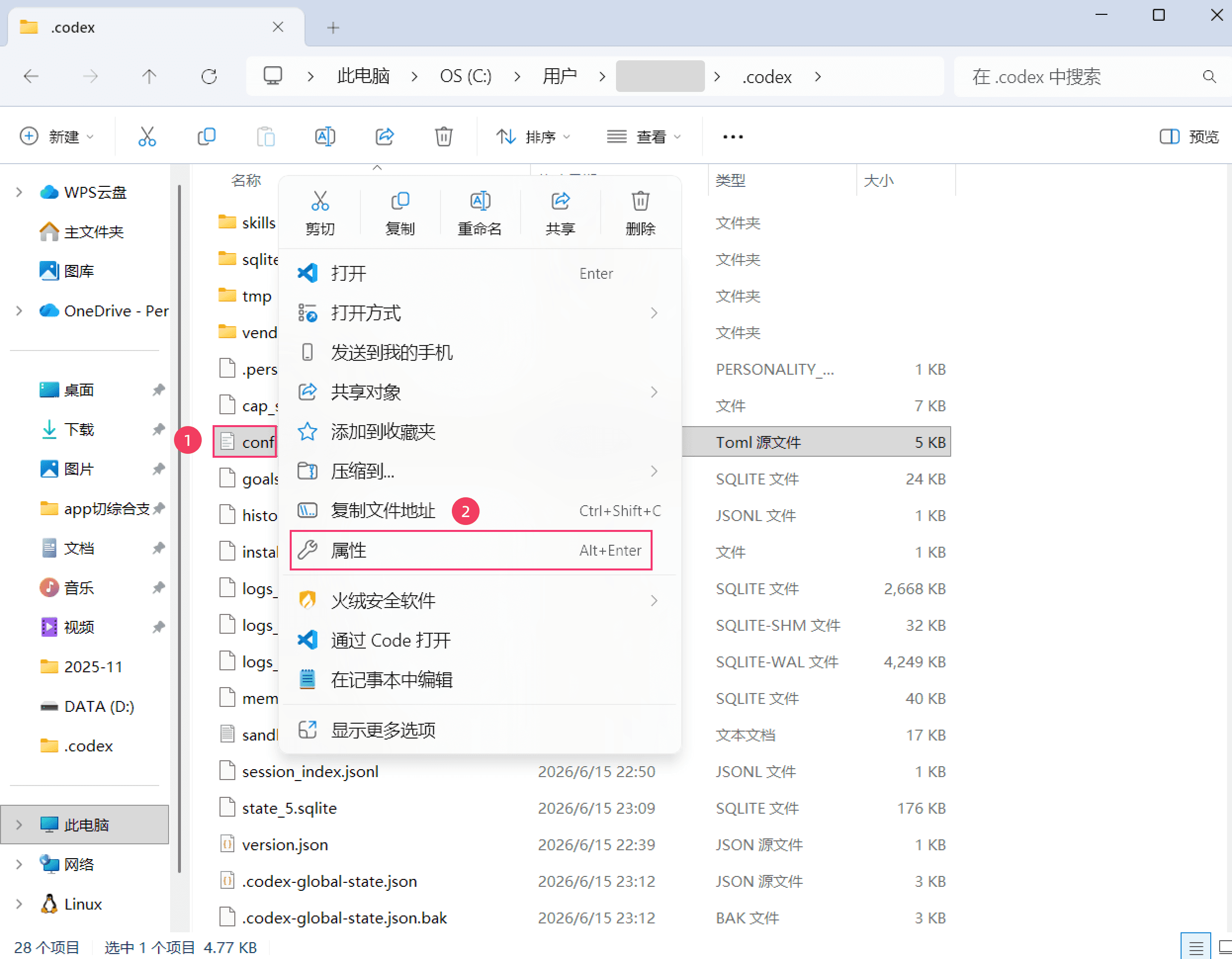
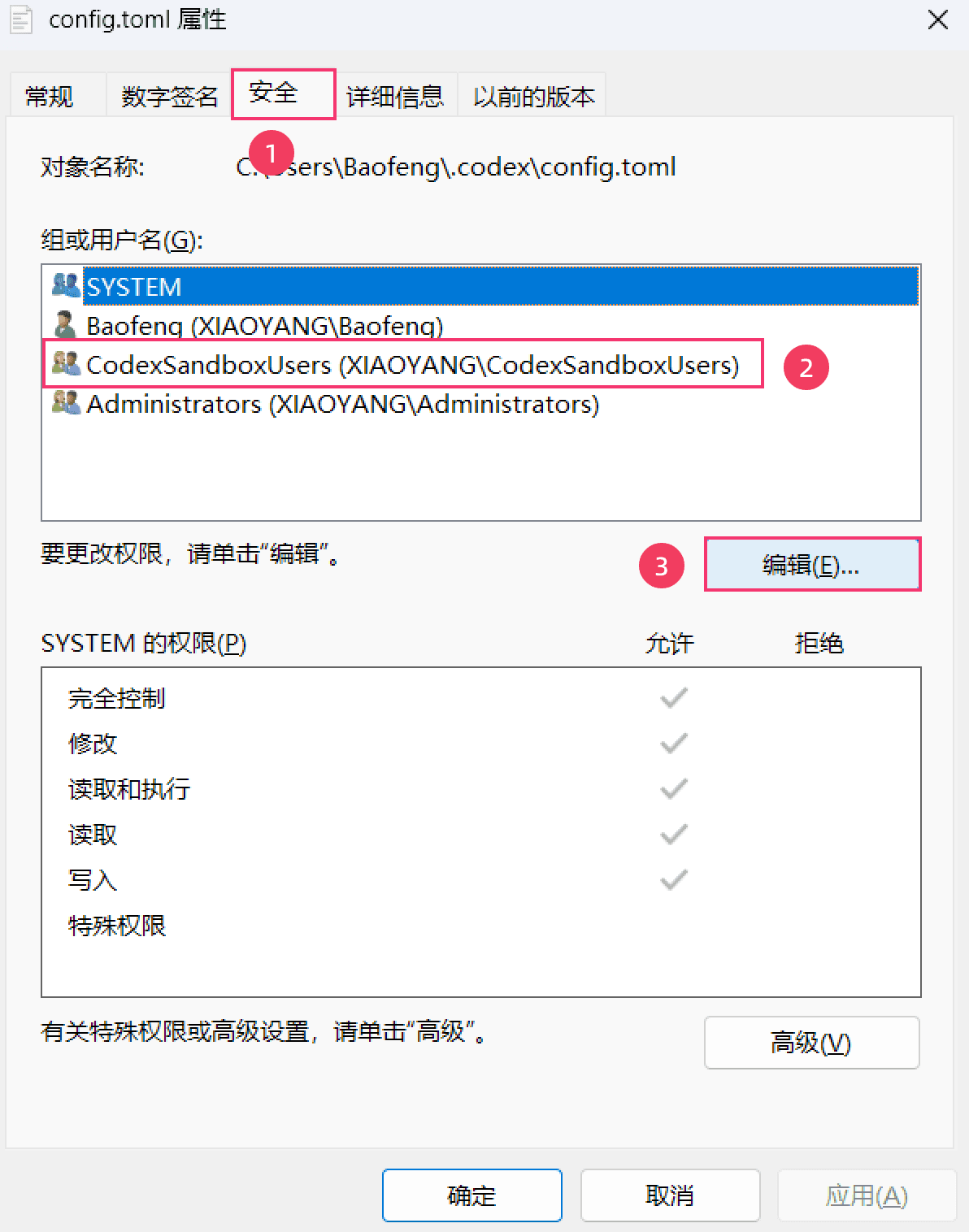
- After replacing the config file, right-click it and select "Properties" to open the properties dialog.
-
Under "config.toml Properties >> Security >> Group or user names", select CodexSandboxUsers, then click "Edit".
-
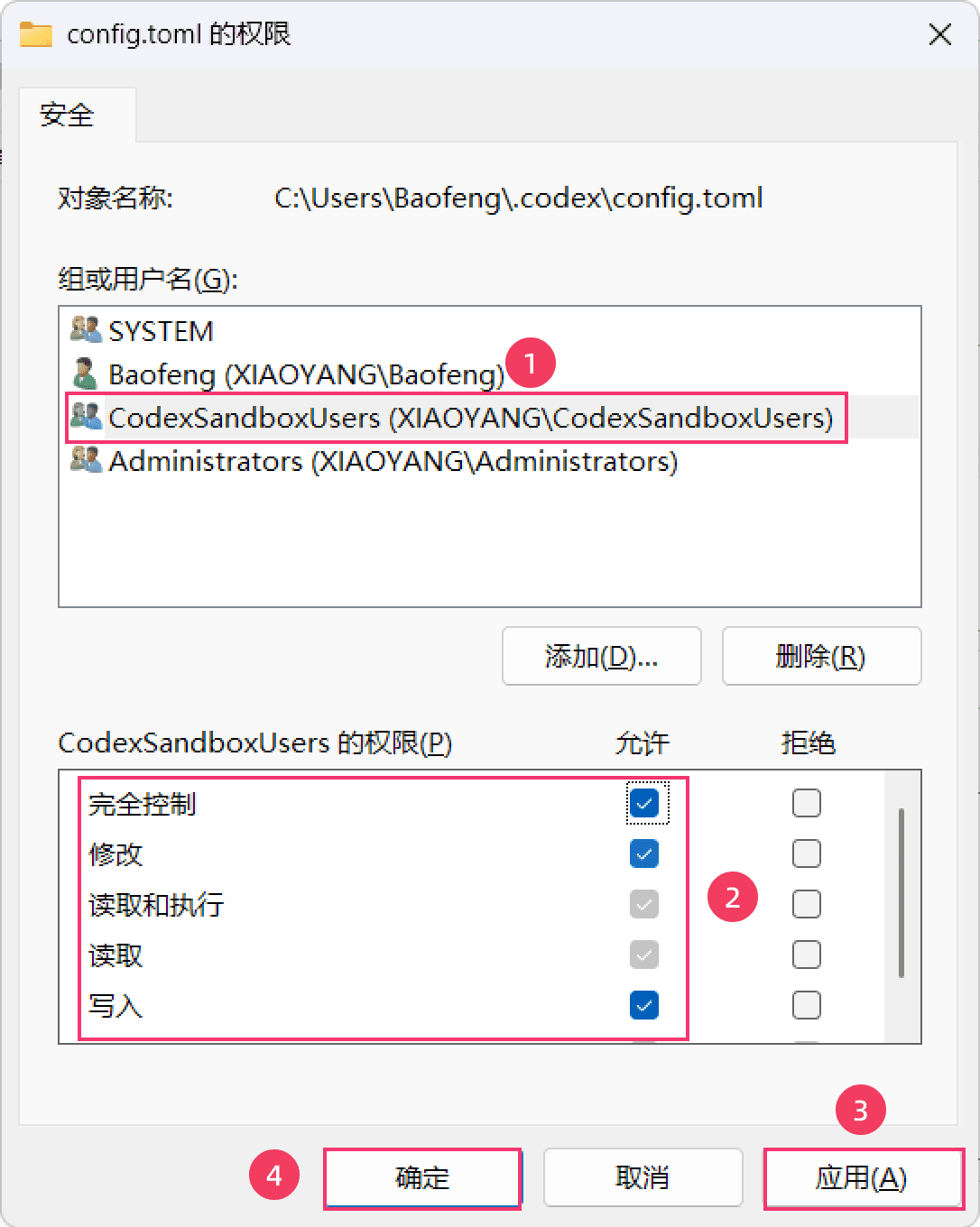
On the permissions page, again select CodexSandboxUsers under "Group or user names", then check the following permissions under "Permissions for CodexSandboxUsers":
- Full control
- Modify
- Read & execute
- Read
- Write
2.4 Start using
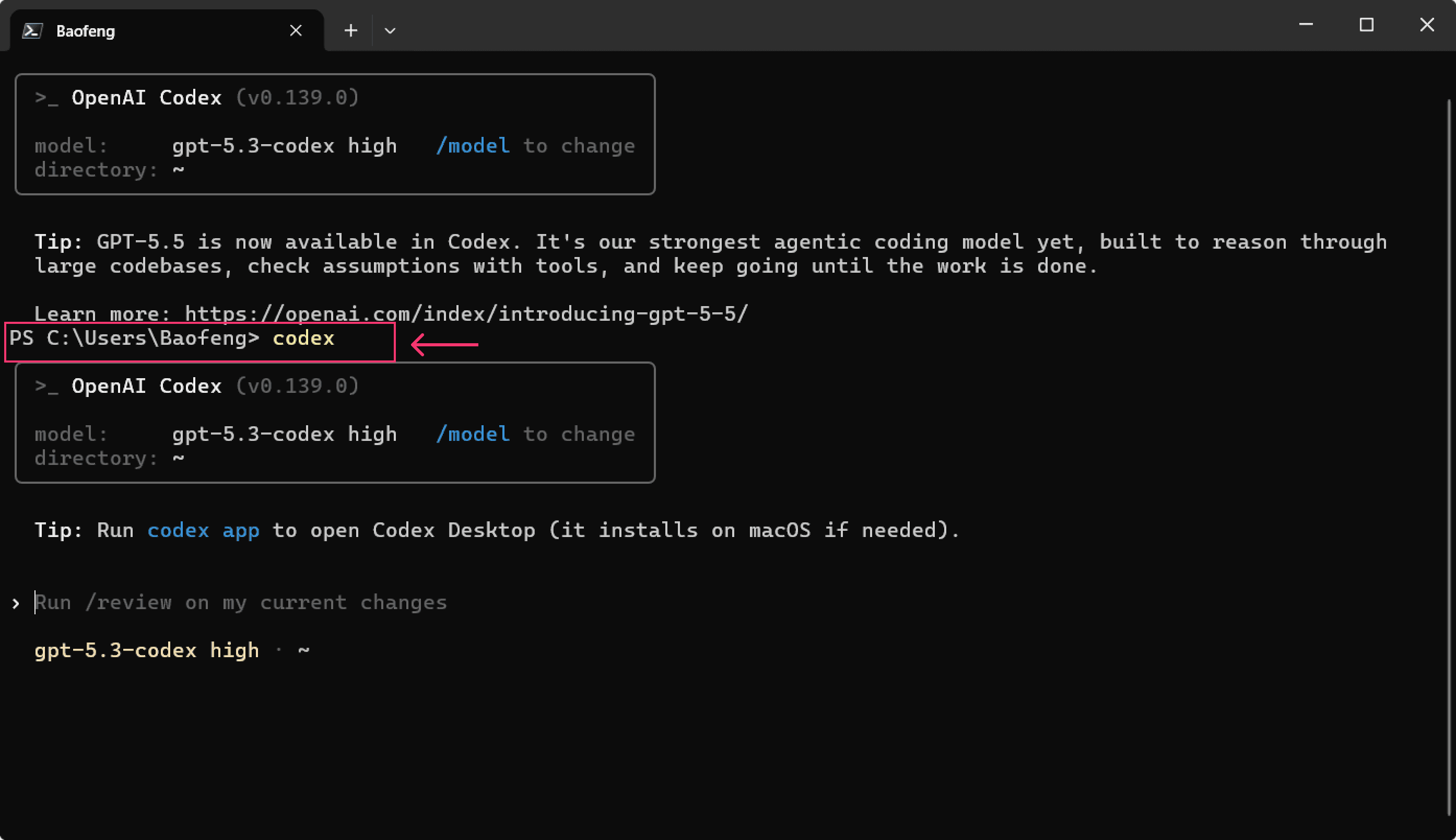
- Once set up, open a PowerShell terminal and run the following command to launch Codex.
- codex
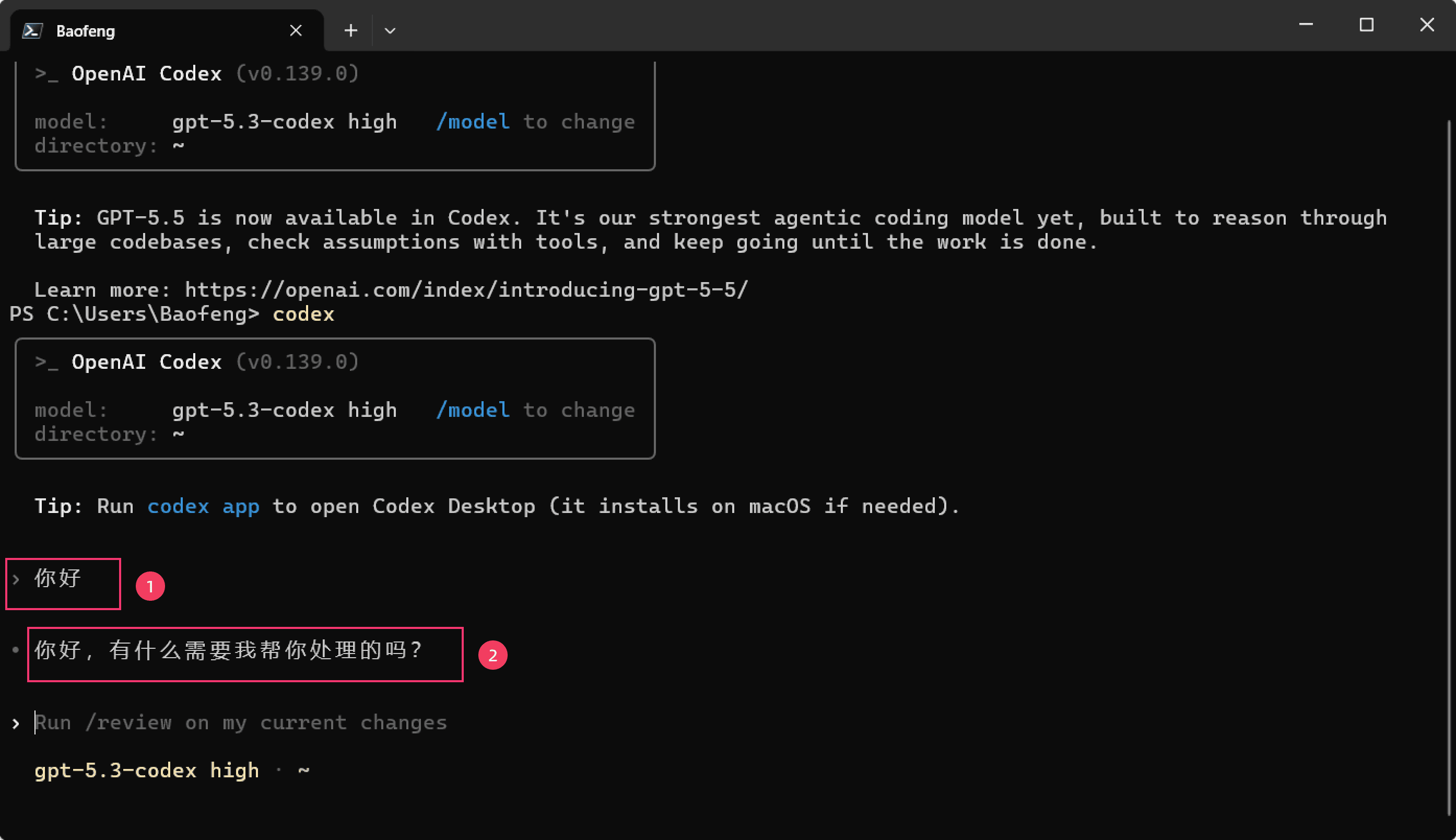
- Once Codex starts, type your question in the chat box and you can get your work done through Codex.
3. Install the Codex desktop app
-
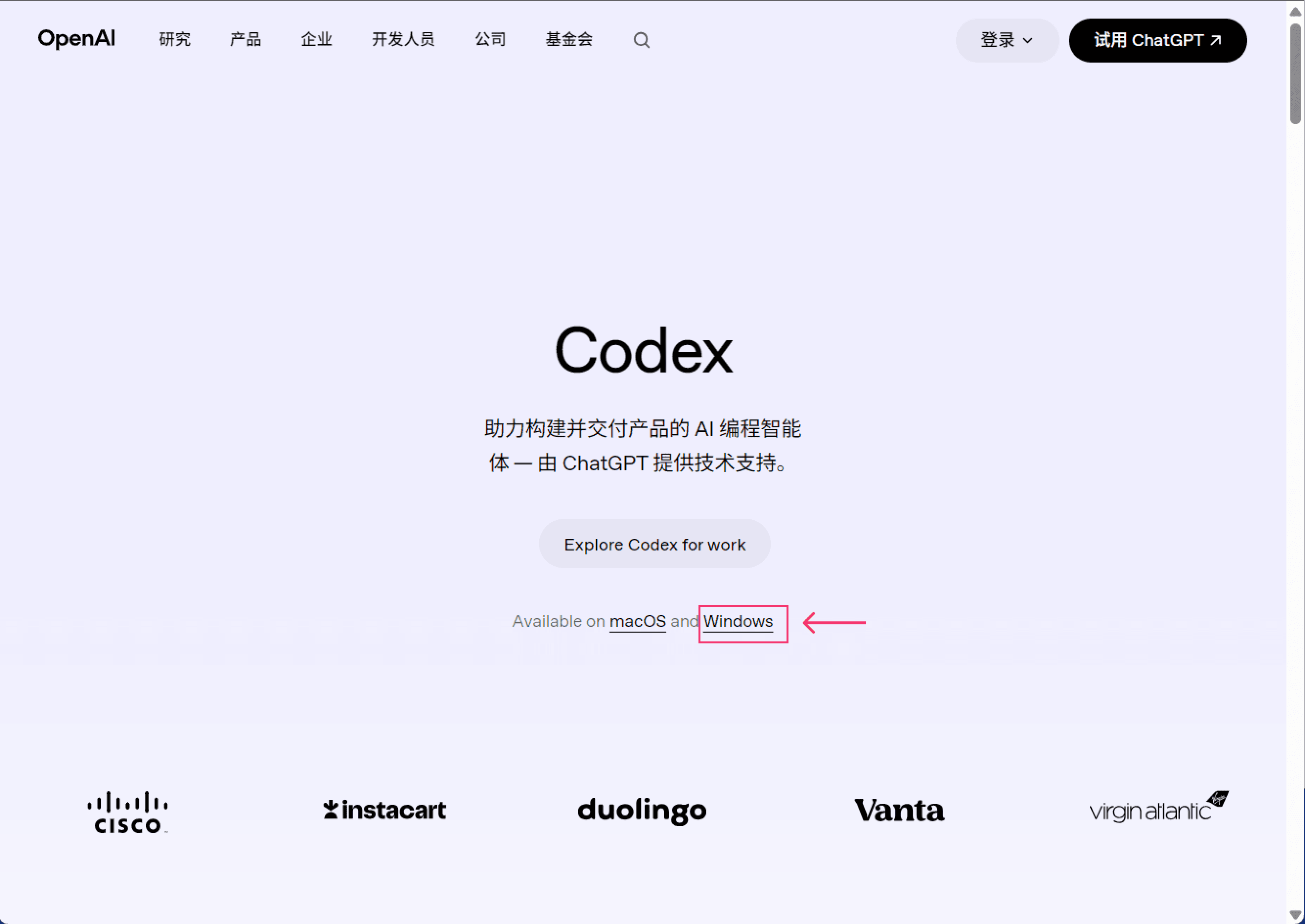
Click the link to open the OpenAI website: https://openai.com/codex/
-
On the website, click "Windows" to download the Codex desktop app. Once downloaded, double-click to install it.
- After installation, double-click to open Codex. You can choose "Skip" for the default setup to enter the Codex desktop app and start working.