Claude CLI
Use CanalAPI with the Claude CLI (Claude Code).
1. Introduction
This guide explains how to install and use Claude Code on Windows.
2. Setup
2.1 Install the Node.js environment
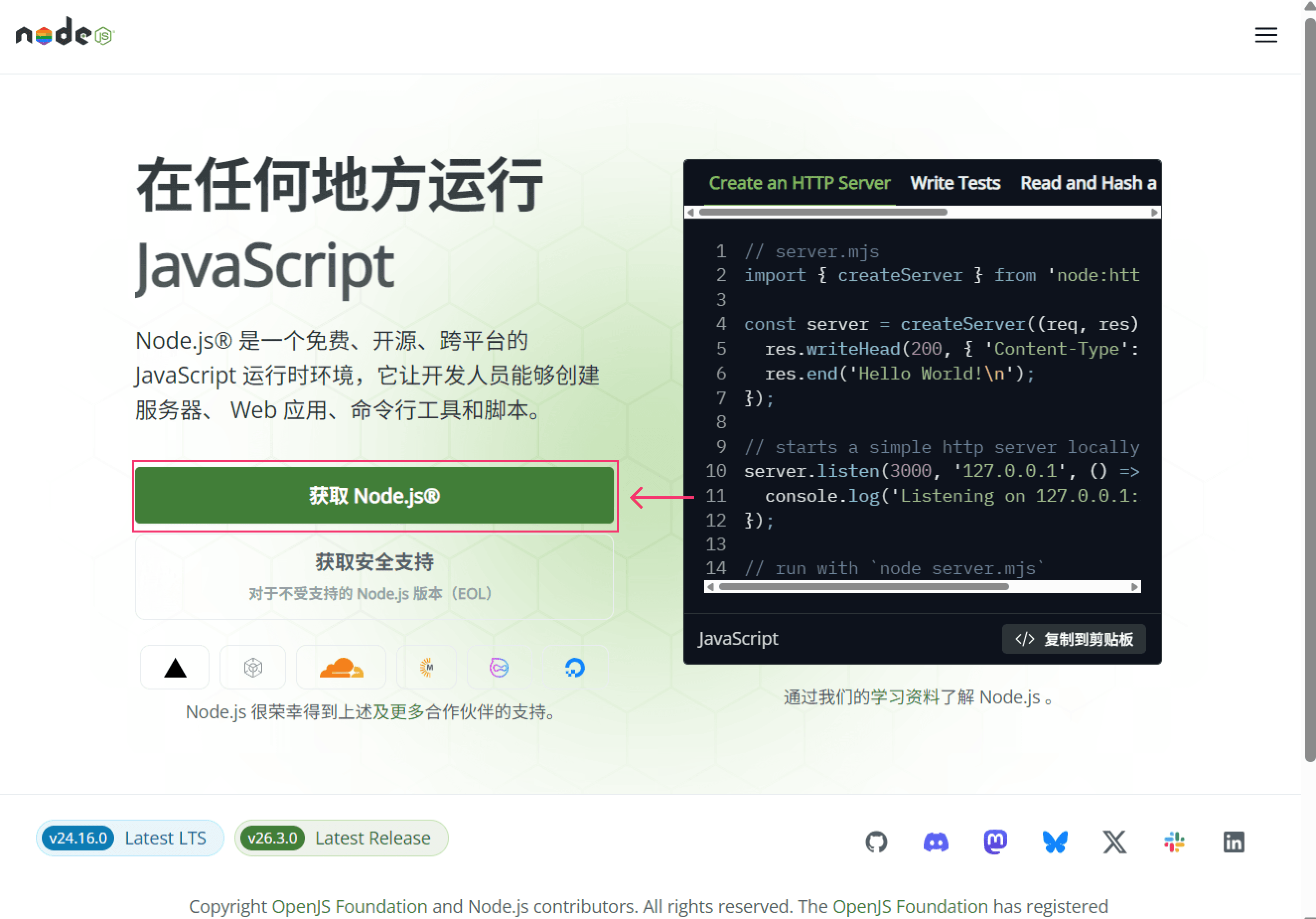
- Open your browser and visit the Node.js website: https://nodejs.org, then click "Get Node.js" to open the download page.
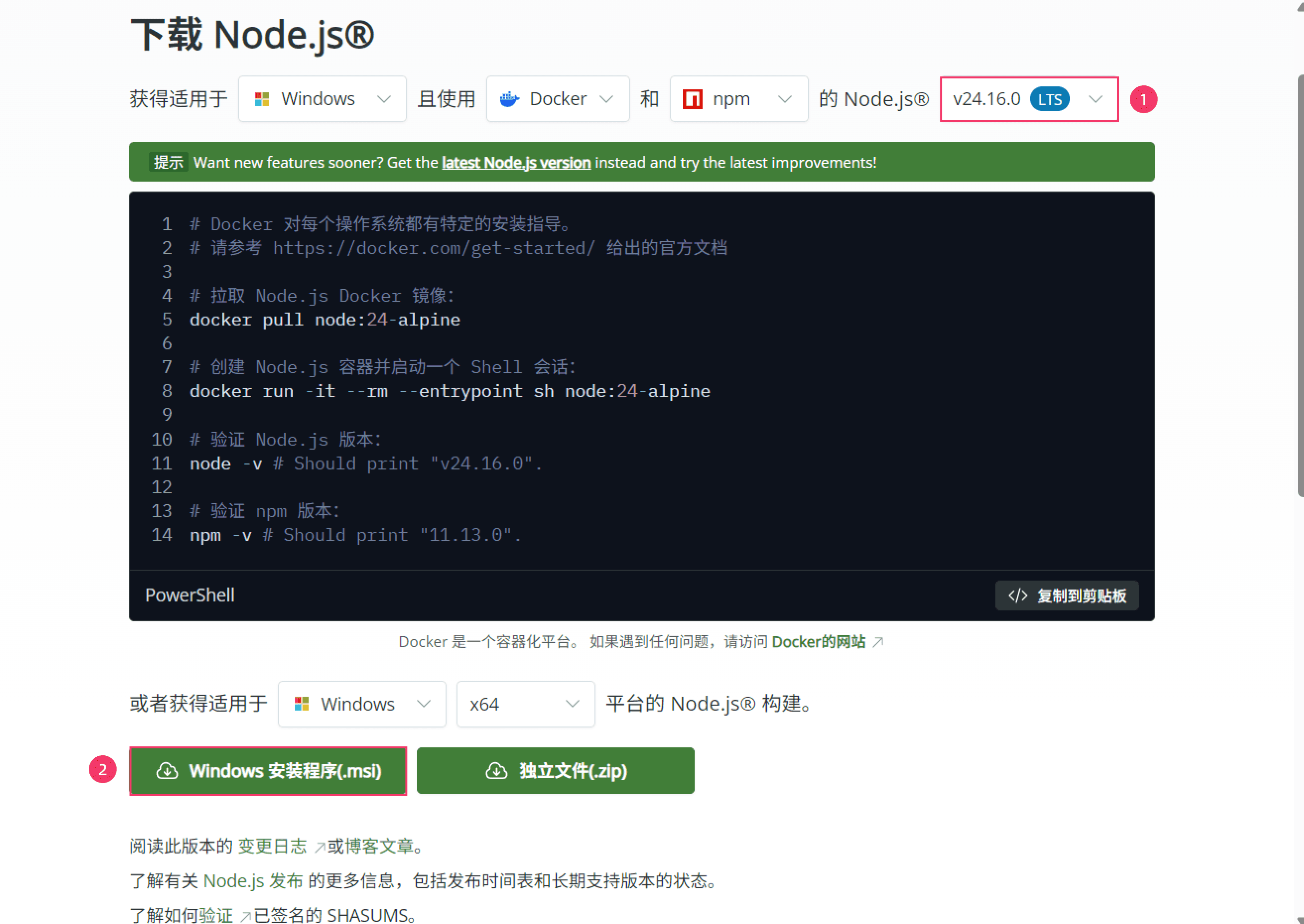
- On the download page, make sure the Node.js version is LTS, then click "Windows Installer (.msi)" to download the installer.
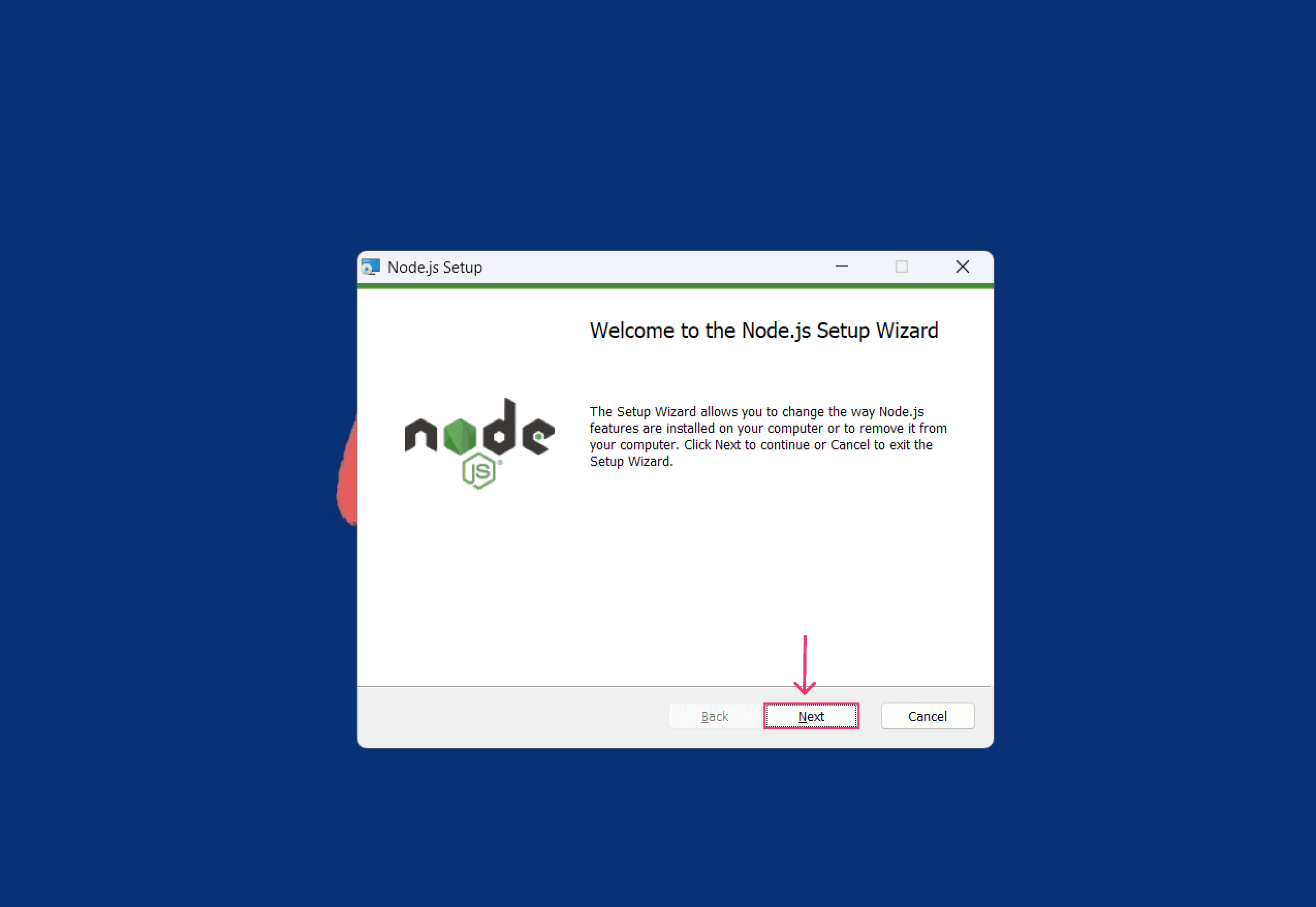
- After the installer finishes downloading, double-click the .msi file, keep the default settings, and click "Next" until installation completes.
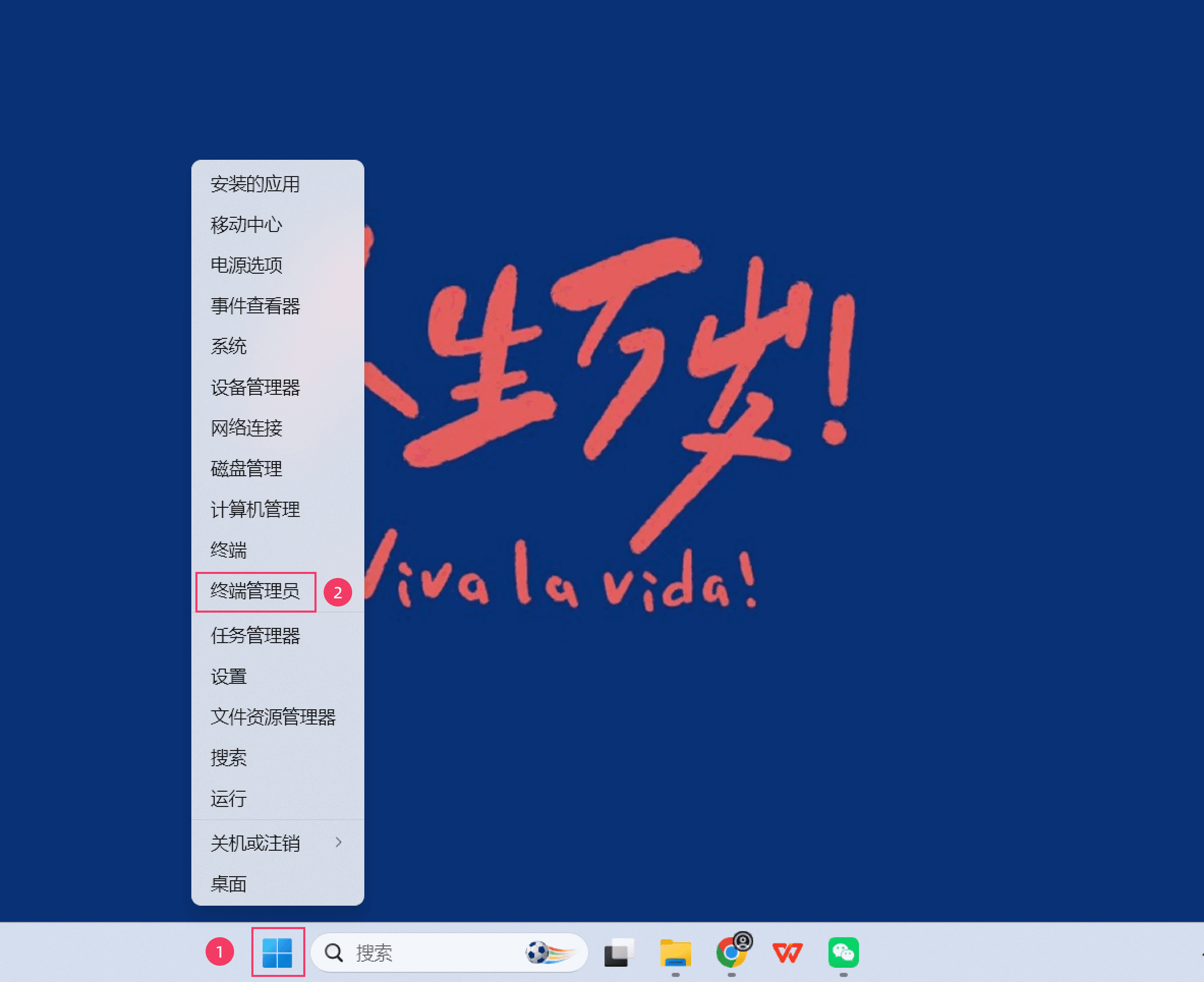
- After installation, right-click the Start menu and select "Terminal (Admin)" to open a terminal.
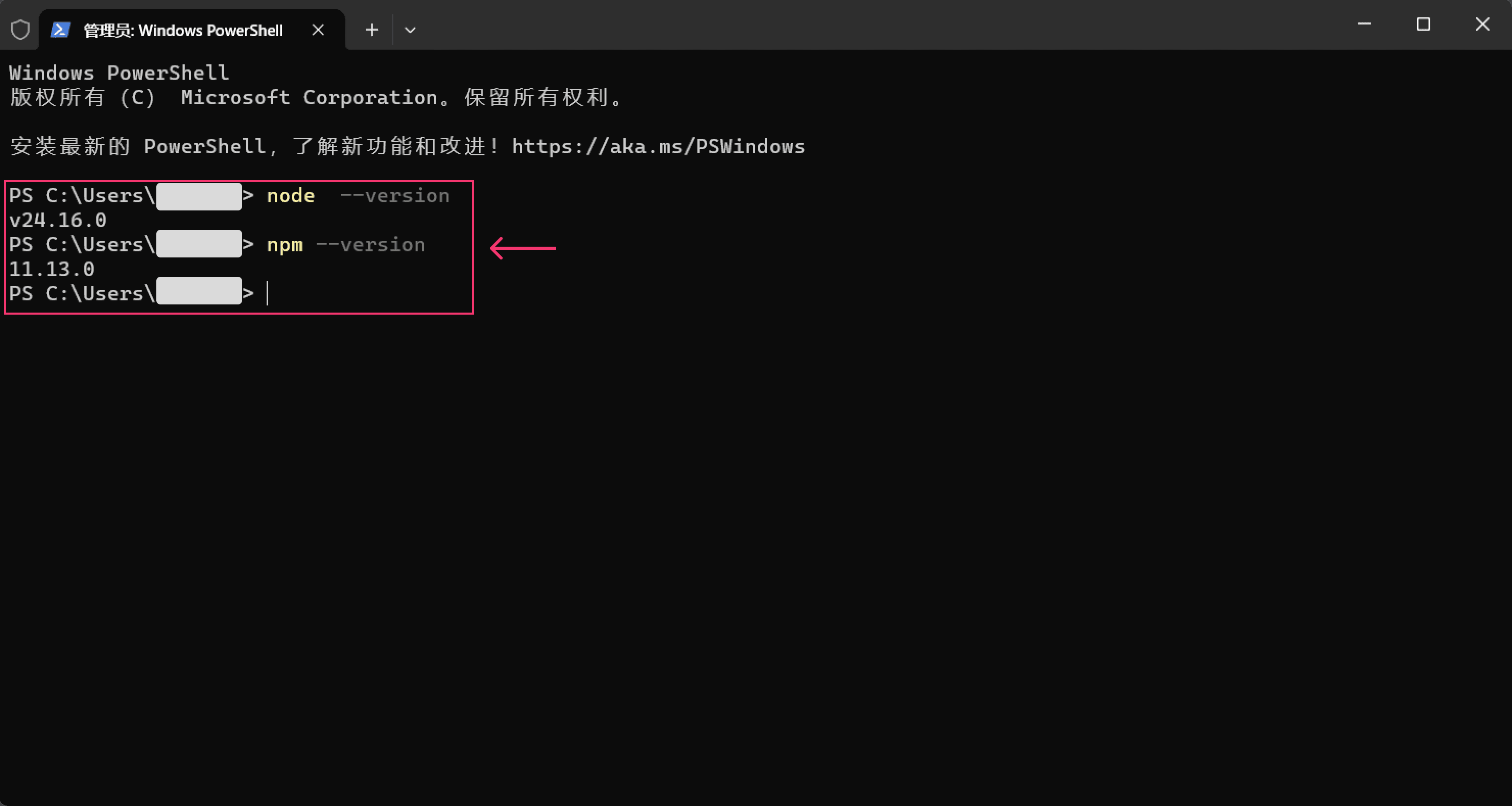
- In the terminal, run the following commands. If the corresponding version numbers appear, Node.js is installed successfully.
- node --version
- npm --version
2.2 Install Git Bash
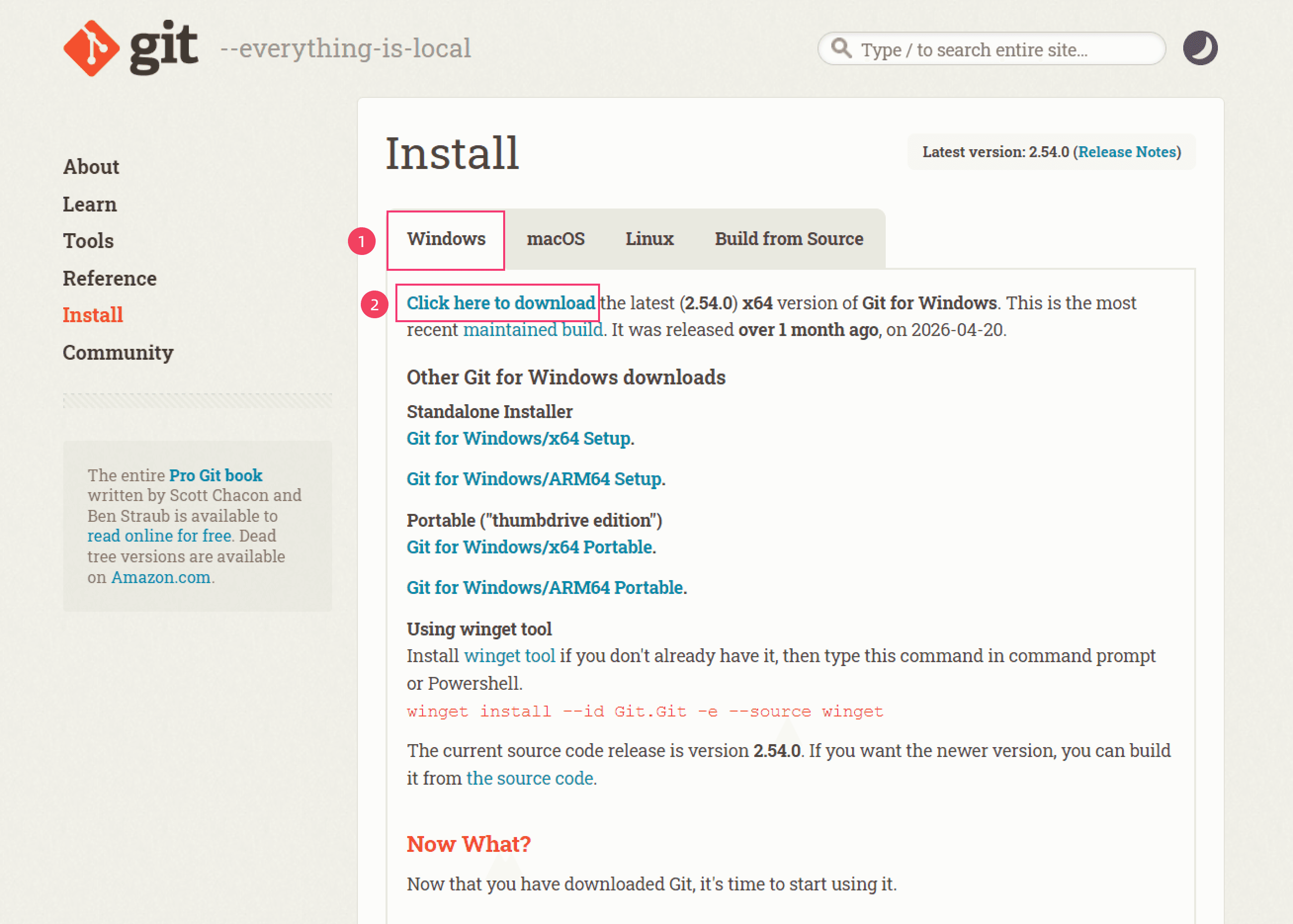
- Open your browser and visit the Git website: https://git-scm.com/downloads/win, choose "Windows", then click "Click here to download" to download the Git installer.
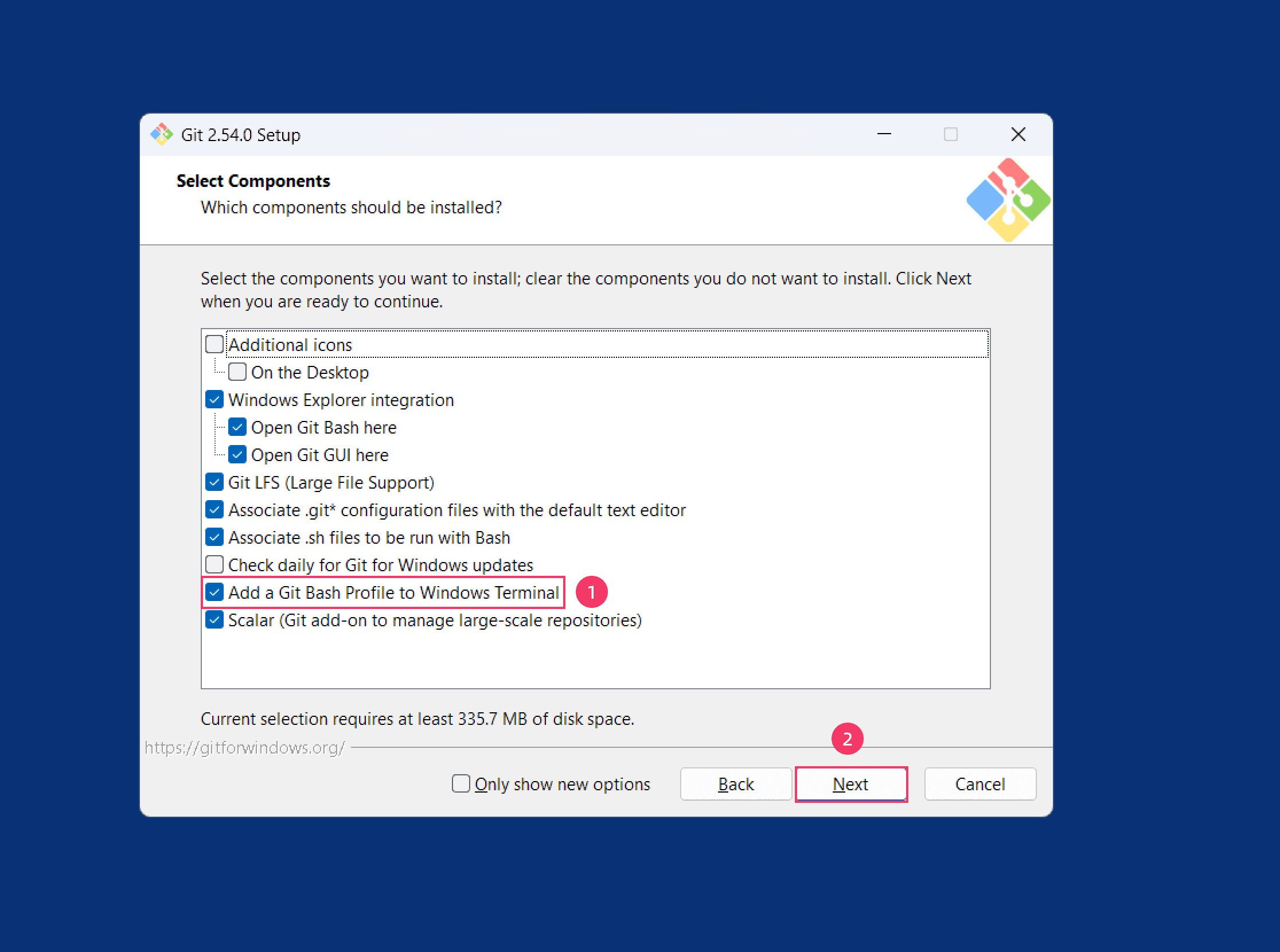
- Once downloaded, run the .exe installer. During installation, configure the following:
- When the "Select Components" screen appears, check "Add a Git Bash Profile to Windows Terminal";
- Keep the defaults for all other steps and click "Next" until installation completes.
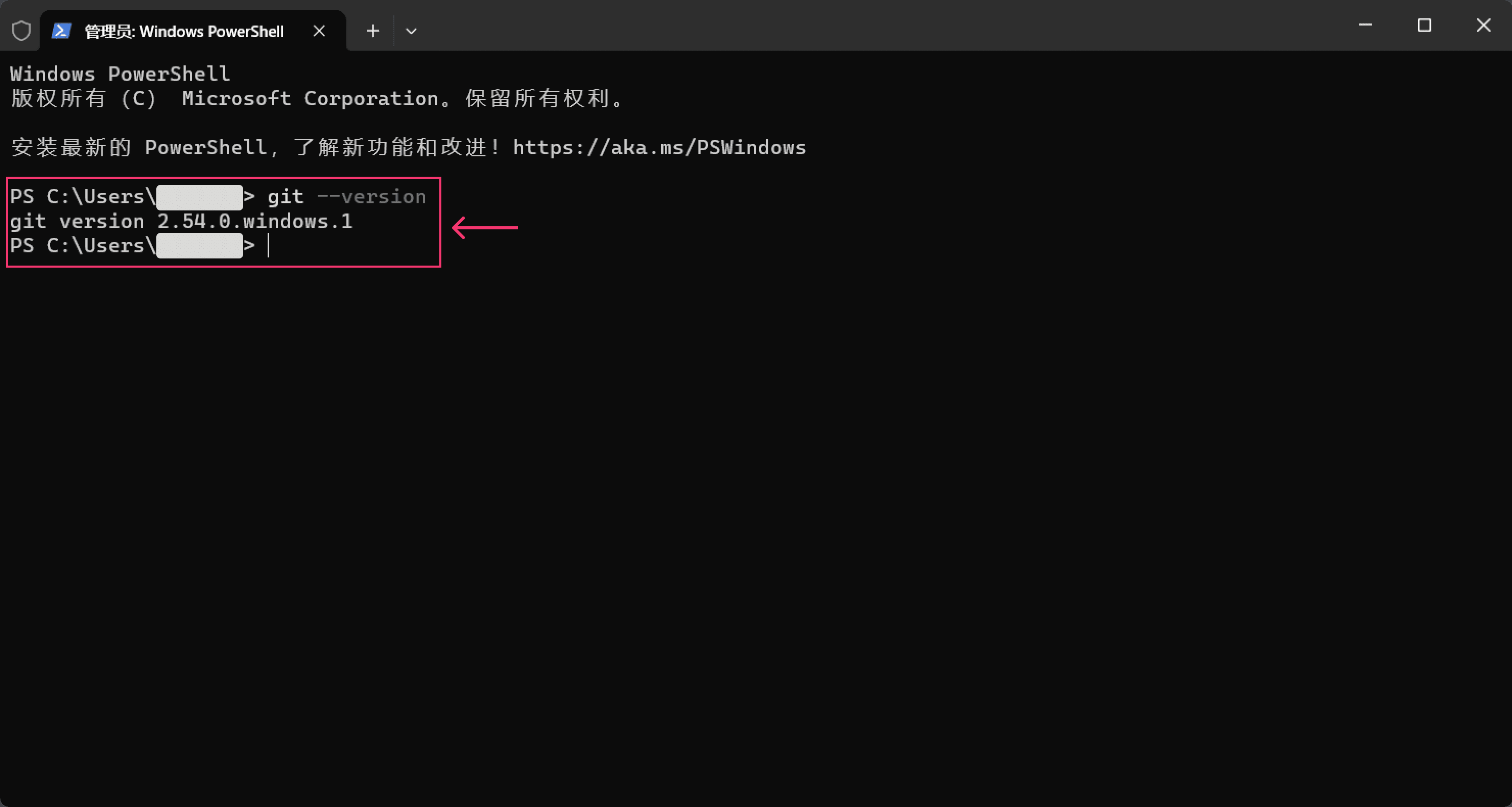
 3) After installation, open a terminal and run the following command. If the version number appears, Git Bash is installed successfully.
- git --version
2.3 Install Claude Code
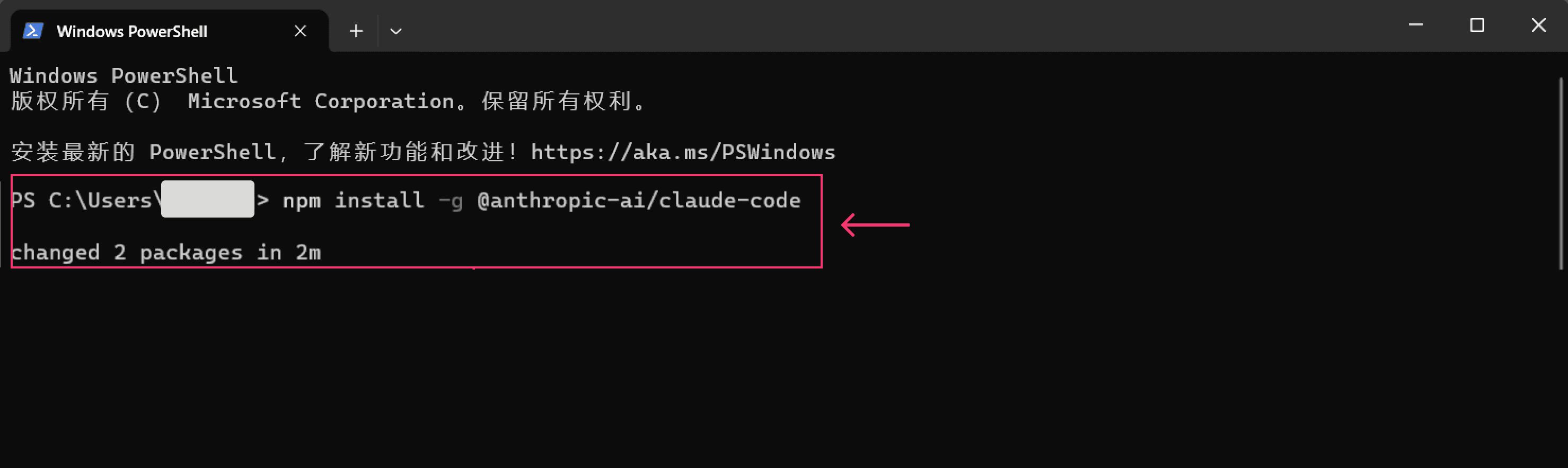
- Open a terminal and run the following command to install Claude Code.
- npm install -g @anthropic-ai/claude-code
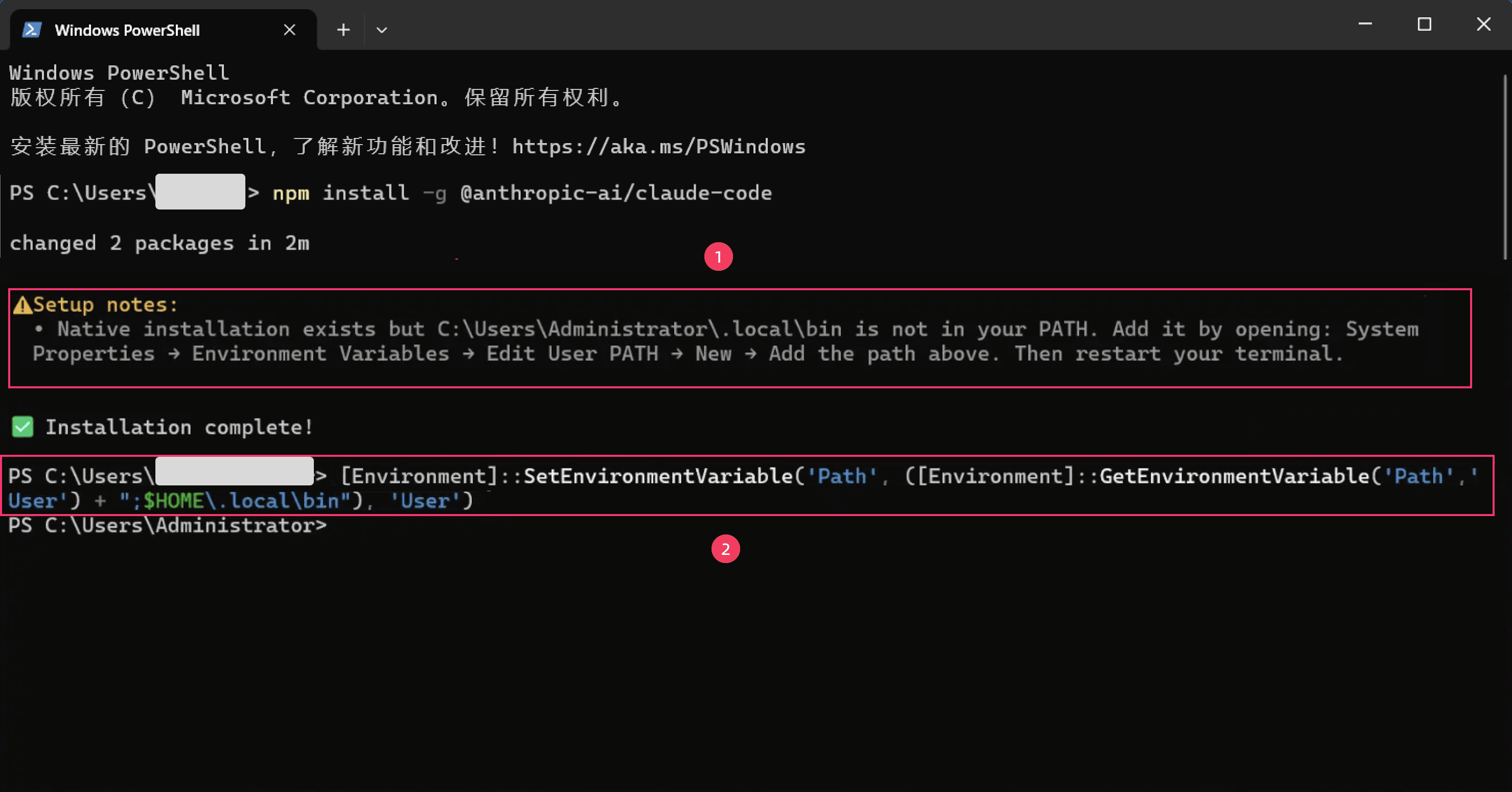
 2) After installation, run the following command to add ~/.local/bin to your PATH:
- [Environment]::SetEnvironmentVariable('Path', ([Environment]::GetEnvironmentVariable('Path','User') + ";$HOME.local\bin"), 'User')
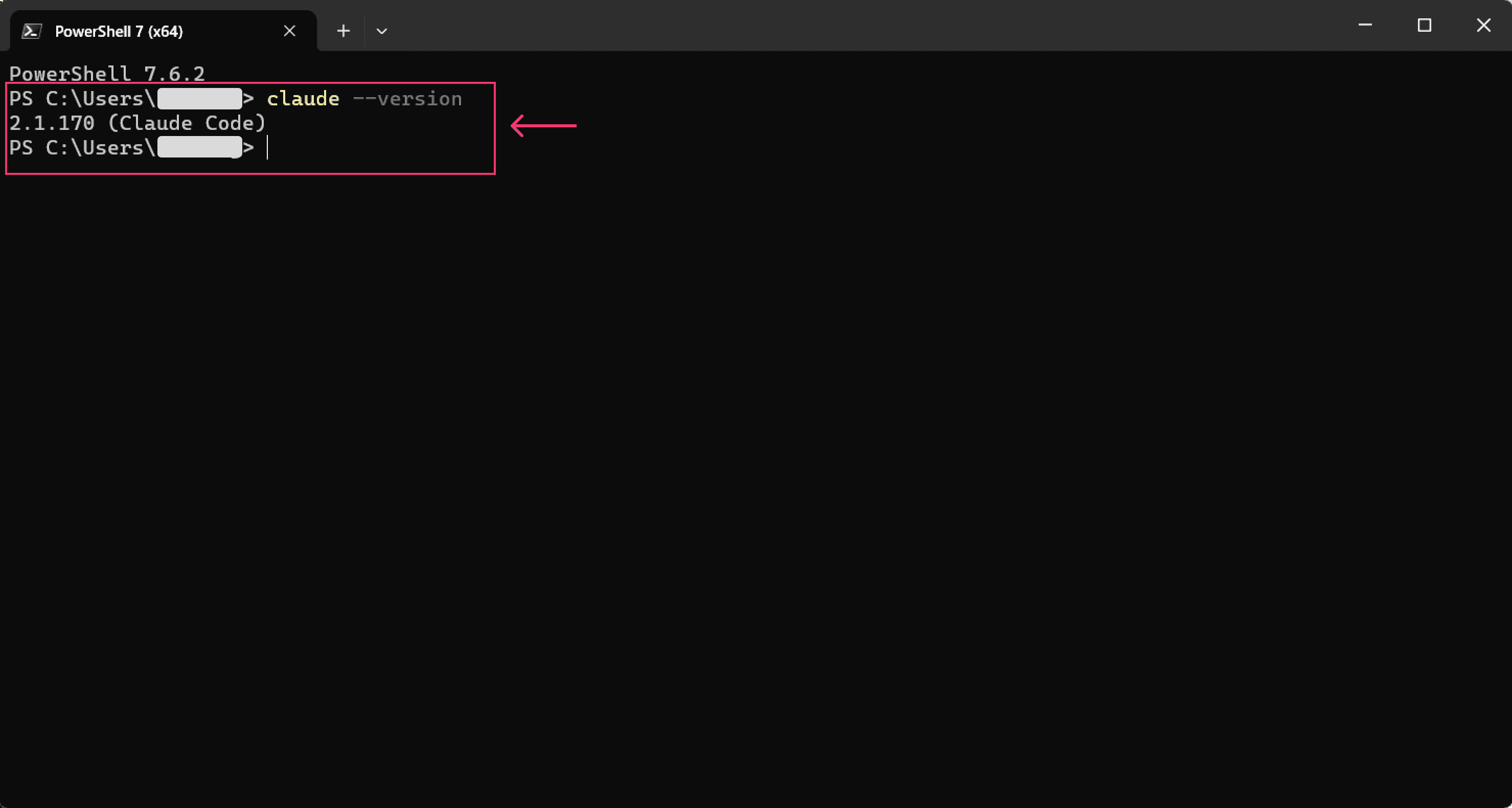
 3) Once done, run the command below. If a version number appears, Claude Code is installed successfully.
- claude --version
2.4 Connect to CanalAPI
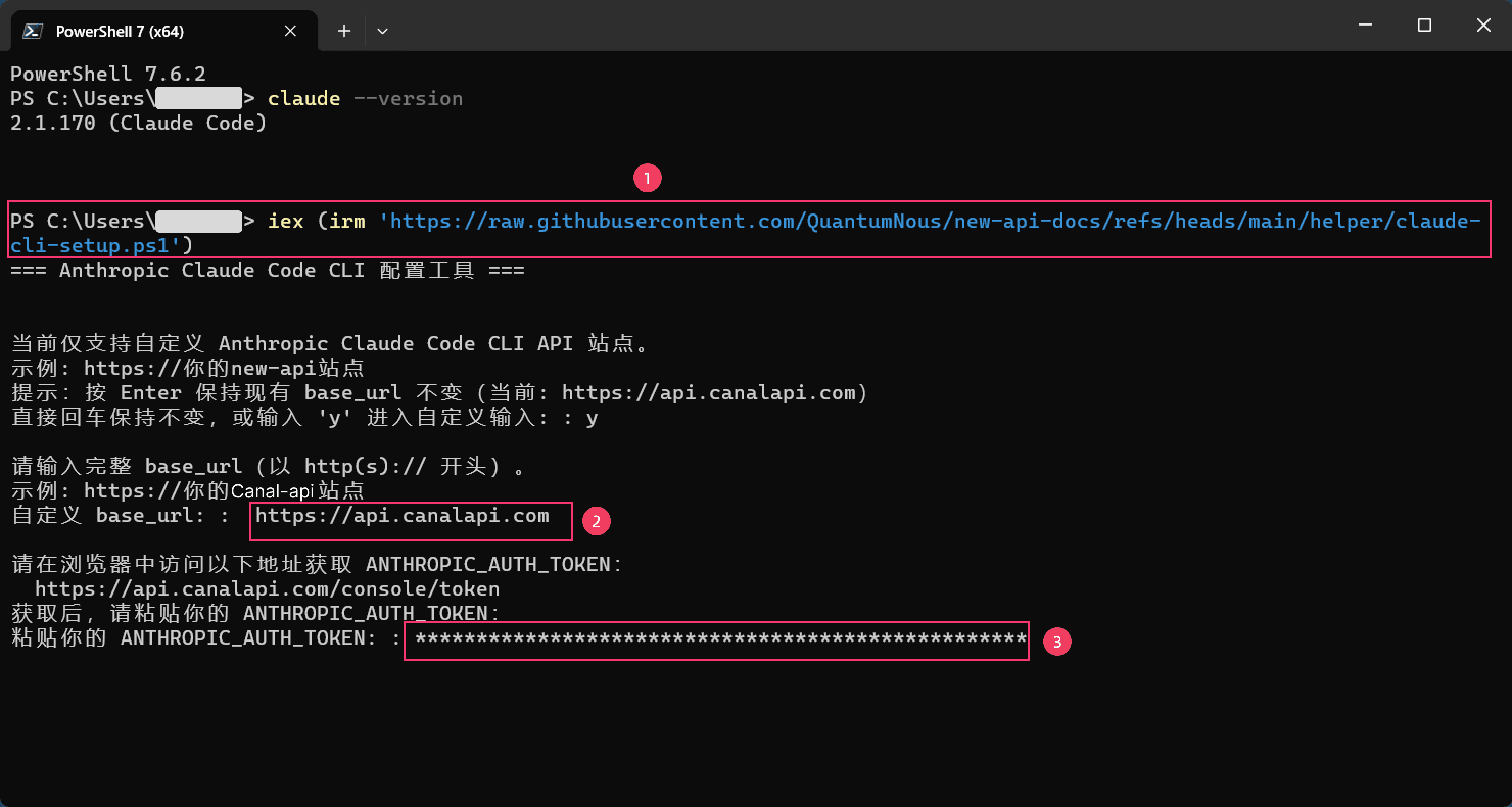
To connect Claude Code to CanalAPI, run the following commands in the terminal to set the environment variables:
[Environment]::SetEnvironmentVariable('ANTHROPIC_BASE_URL', 'https://api.canalapi.com', 'User')
[Environment]::SetEnvironmentVariable('ANTHROPIC_AUTH_TOKEN', 'YOUR_CANALAPI_KEY', 'User')
Replace
YOUR_CANALAPI_KEYwith the API key you created on the CanalAPI website.
2.5 Start using
- Open a new PowerShell window and run the following command to launch Claude Code directly:
- claude
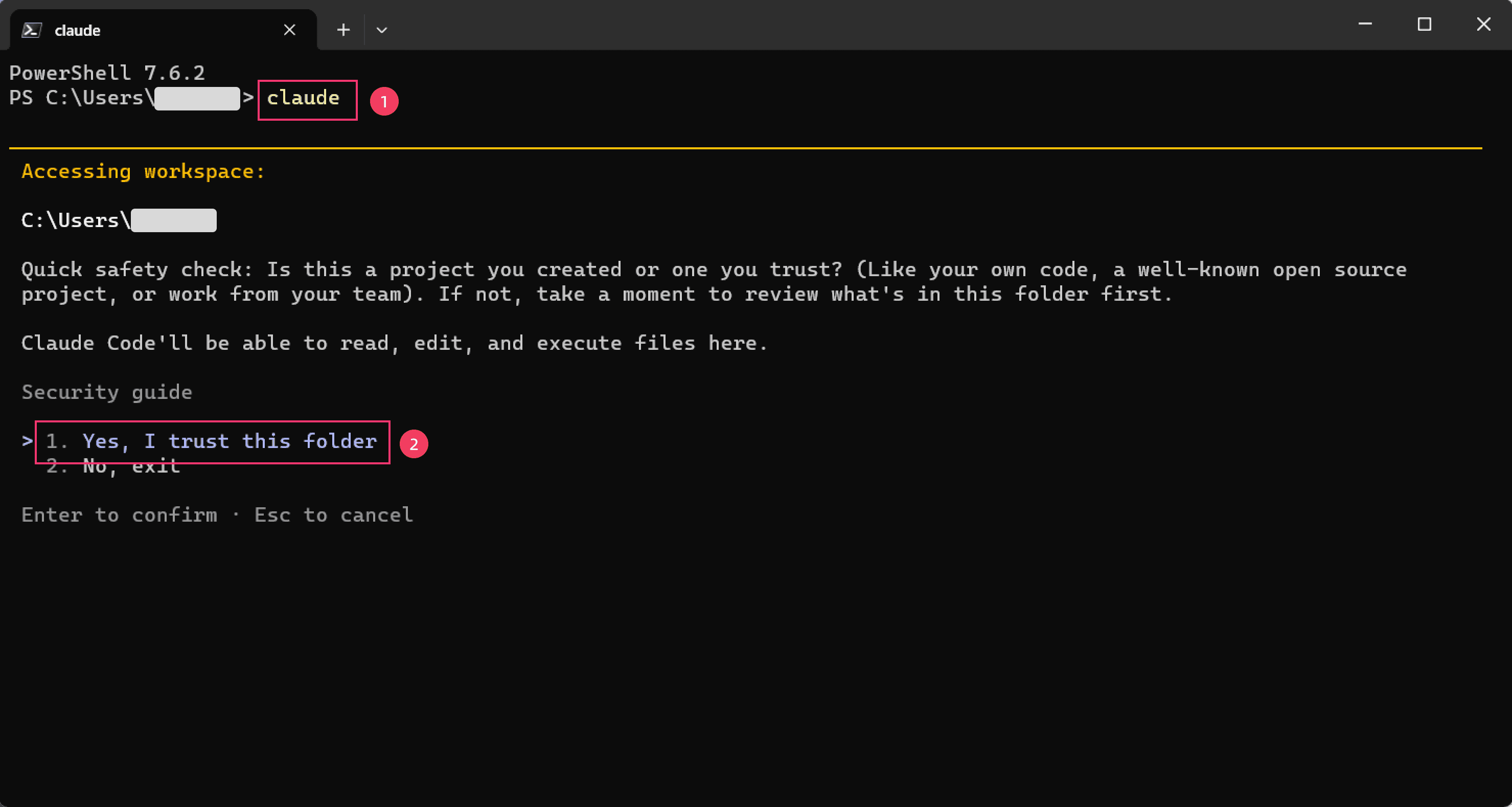
- Once Claude starts, you're ready to go.